Windows: Preparing for Aegis Partition Expansion
Last updated: April 1, 2026
When the Aegis partition on your device nears capacity, you can free up space by performing the following steps to ensure your machine is backed up and ready for Atomus/MSP personnel to expand the partition size.
User Preparation Steps
Before your call with Atomus/MSP, follow these steps no more than 24-48 hours before the scheduled partition expansion:
Run the Aegis app
Click Help on the bottom right corner
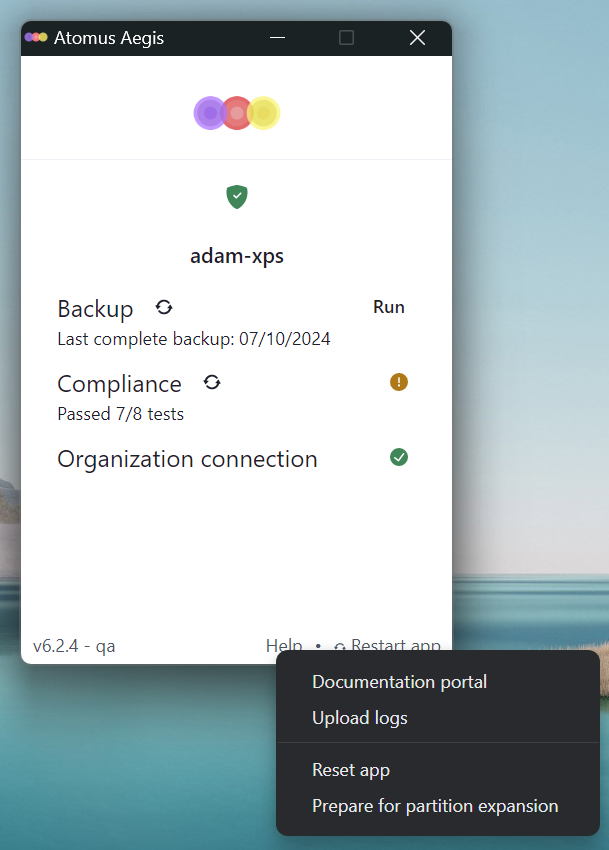
Click Prepare for partition expansion
If this option is not there, you may have to update to the latest Aegis app
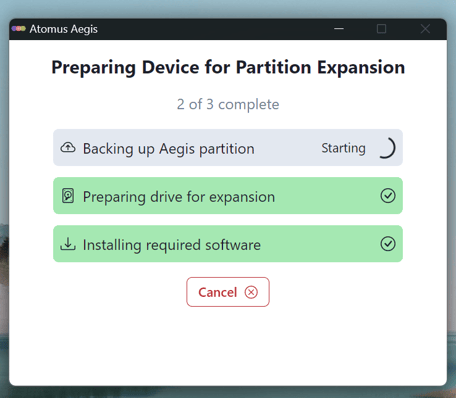
This will then open a window and ask if you want to backup
Click Yes, and it will prepare for the extension by automatically completing the following 3 steps:
Complete a backup of the current Aegis partition (C Drive)
‘Prepare drive for expansion’ decrypts BitLocker
‘Install required software’ downloads the needed software to the machine
Important note: there is a risk of data loss during this process! You'll need a backup of any important items on both partitions of the device. The above steps backup only the Aegis partition, so please ensure you save anything necessary from the non-Aegis (Windows 10/11) side of the device before continuing.
(Make sure you are working with Atomus/your IT company for this section) - Users should not complete this themselves.
Atomus/MSP-led steps to complete the partition expansion:
Verify the user has performed a backup on both partitions
Please inform and confirm with them the risk of data loss ON BOTH PARTITIONS
Open Manage BitLocker and verify that BitLocker has been disabled on the Aegis C: drive
Note: if the machine is restarted via step 5 below before the drive is fully decrypted, the computer may bluescreen, and the drive may be irrecoverable.
Once step 2 is verified, open Create and format hard disk partition settings in Control Panel
Find the D: Drive
Confirm the drive being deleted will remove everything from the old partition and make it irrecoverable
Once the user confirms this is acceptable, right click on the D: Drive and Delete Volume…
Run Paragon (on the Desktop)
Technicians can drag the C: Drive partition to extend the drive back into the now empty volume space
Please unplug any and all peripheral devices (keyboards, mice, monitors) except a direct power source before restarting the machine. Failure to do so may cause the computer to bluescreen.
Click Move and Restart Now when prompted. A few seconds later, the computer will give you a popup asking you to restart. Click Restart.
DO NOT restart the machine through any process other than when Paragon asks to restart. Turning off, restarting through Windows, losing battery power, etc during this process could brick the computer completely.
Once completed, the machine will go through several restarts before booting back into the Aegis partition normally.
Upon booting back up, verify the free disk space in Settings or in Disk Manager
Uninstall Paragon
Additional notes
Once the expansion process is complete, the Aegis app should automatically launch and re-enable BitLocker.
The backup process will not backup the items on the partition that’s being shrunk/deleted.
If the Atomus Aegis Partition app is still on the old partition, there is a backup feature that may have backed up during the device onboarding stage, and this may suffice as a backup if you accept this. We recommend backing all items up to OneDrive.
Ensure the users follow their portion of the steps at least several hours before the call, as the backup step can take some time, depending on the last backup date, size of backup needed, and the user’s internet speed.
If the user is looking to only shrink the old partition rather than delete it completely, the technician will have to go into Manage BitLocker settings in Control Panel and turn off BitLocker for the D: Drive (old partition) before running Paragon. Paragon will not allow you to shrink the space without this step completed.