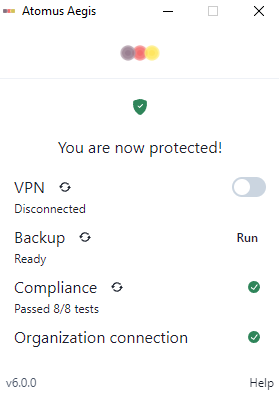
Windows: Adding a new user to an existing Atomus Aegis device
Last updated: April 1, 2026
We recommend you wipe the Atomus Aegis device in between users so that all hard drive space is available. If this is not possible, follow these steps.
Set up the new user
Follow the steps in this video to add another user (you will need their email)
Go to the Windows Lock Screen
Click on “Other User”
Use the Atomus setup Email ID and Password for the new user
Follow the next steps after you are logged into the new user account.
Download and Run Aegis
Please download Aegis-Setup.exe from the link you used previously and run it to install the application in the new user's account.
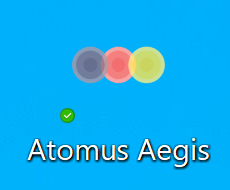
Run Atomus Aegis by clicking the icon on your desktop, then Aegis will begin its installation.
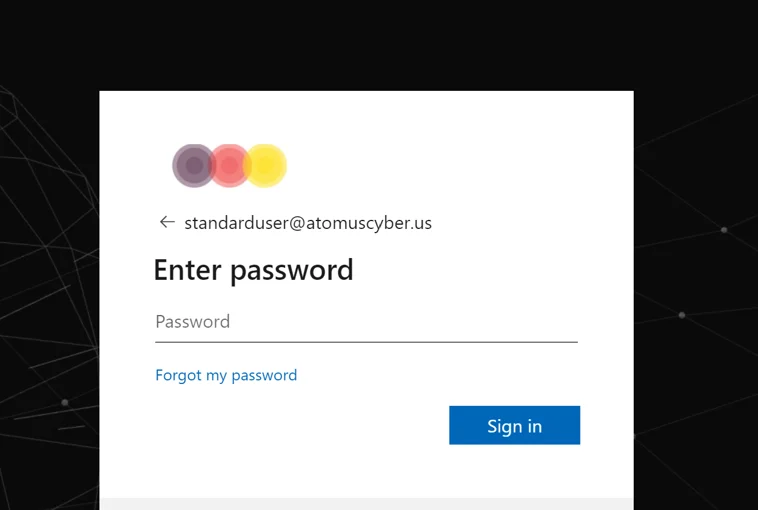
You will be prompted to login to your Microsoft account. Use the Microsoft ID provided by Atomus to log in.
Allow the installation steps to complete. If any step fails, you can retry the step by clicking the rotating arrow icon next to the installation step. If the problem continues, send a support request with the details of the issue.
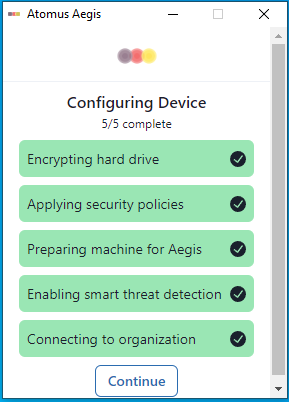
Once all steps have finished click "Continue", and when ready restart your computer to complete the final step of the installation process. When you have successfully restarted and logged back into Aegis the process is complete.