![atomuslogoupdate.png]](https://portal.atomuscyber.us/hs-fs/hubfs/atomuslogoupdate.png?height=40&name=atomuslogoupdate.png)
Update Duo Software by March 31, 2026, for DigiCert CA Bundle Expiry
On April 15, 2026, Mozilla Firefox and Google Chrome will formally distrust a set of DigiCert root certificates currently embedded in older versions of Duo software. As a result, any Duo components that have not been updated to a supported version will stop functioning entirely by March 31, 2026.
This is not a routine certificate expiration. This is an active, policy-driven distrust decision by major browser and OS vendors, the affected certificates are not simply aging out, they are being explicitly revoked from trust chains for security and policy reasons. Once a root CA is distrusted, it can no longer be used to establish secure communication with Duo's systems, and authentication will fail.
Scope of Impact
- Windows: No Impact
- MacOS: Impacted
- Fix: We will be upgrading the app from Duo 2.0.2 → 2.0.5 version through Atomus Aegis 6.4.2. User will need to reenroll with Duo Offline Access, regardless if it was setup previously.
- Mobile Devices: Impacted
- The minimum version for Duo Mobile-Android and Duo Mobile-iOS is 4.85.0, Warn users to update version: set to If below 4.85.0. (ask everyone to update their duo app is the best case possible)
- YubiKeys: Not Impacted
Aegis Update Workflow
Users will first be notified to update the Aegis App via a desktop notification or the banner in the Aegis app - “Update available 6.4.2 Click here to update” (See below).
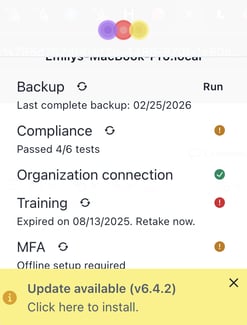
Once the Aegis app has finished updating Mac users will get an error icon in their MFA setup in the aegis app and will get the below Alert 1.
Alert 1: Desktop Notification "MFA setup required"
What you see:
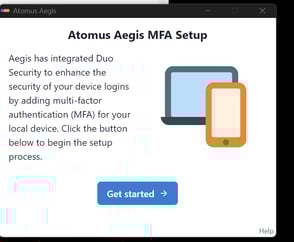
MFA setup required multi-factor authentication setup is required for device compliance. Click here to set it up now.
When it appears:
- After app startup if offline setup is incomplete.
- If users do not complete this step right away the app will notify the user up to 6 times on escalating intervals: 1, 2, 3, 5, 8 days apart.
What to do:
- Click “Get Started”.
- Follow the onscreen instructions to connect your mobile device to Duo.
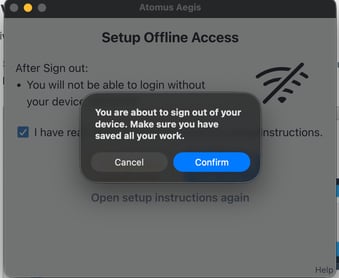
Alert 2: Offline Setup — "Setup Offline Access"
What you see: Offline setup required in the MFA section of the Aegis app.
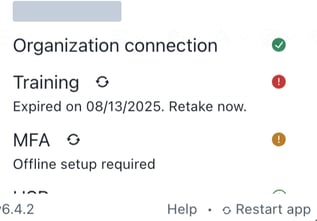
When it appears:
- After Duo enrollment is complete but offline access isn't configured
What to do:
- Save all your work (you will be signed out)
-
Click "Open setup instructions" and read them
-
Check the box: "I have read and understand the offline setup instructions"
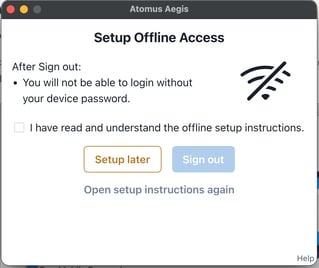
- Click "Sign out" → confirm in the dialog
- At the macOS login screen: complete the Duo offline setup prompt
- Enter Username and password → follow the on-screen instructions to activate offline access
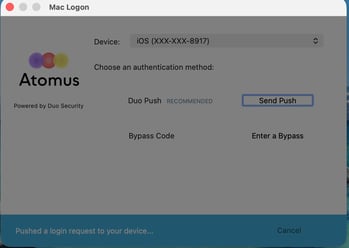
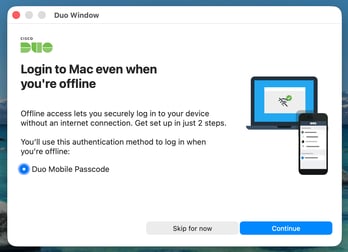
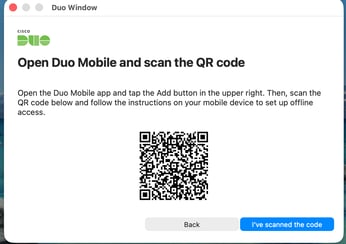
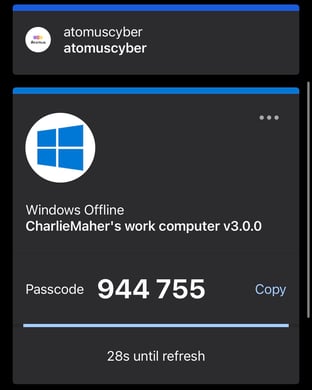
Once the process is complete users will have 2 Duo Accounts in the application on their phone.
- For online access
- For offline access
Users will need to input the 6-digit code into the computer to authenticate against offline access.
WARNING: After setting up Duo, you will need your device password and username (typically Firstname [space] Lastname) to log back in (macOS). PIN/FaceID will not work.
Alert 3: "Setup Later" (Deferred)
What you see: You clicked "Setup later" on the offline setup window
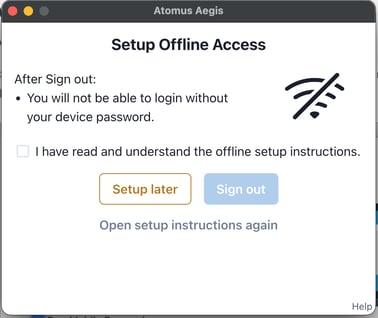
What happens next:
- MFA section shows error state (red/yellow)
- Notification will appear within 1 day reminding you
- Up to 6 reminders, then an email is sent
What to do:
- Complete the setup when convenient click the circular arrows in MFA section or wait for notification
- We strongly recommend setting up offline access as soon as possible to avoid any disruptions in workflow
- Macs do not immediately connect to the internet on restart; users are prompted for offline access more often on Macs
Alert 4: Installation Error
What you see: "An error occurred while installing Duo..."
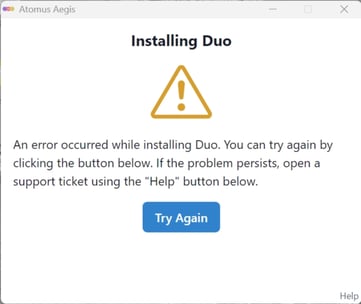
What to do:
- Click "Try Again"
- Ensure you have internet connectivity
- If persistent → click "Help" → "Atomus Support request"
- Team Atomus will assist with the setup
Alert 5: Enrollment Error
What you see: "An error occured while sending the Duo notification to your device..."
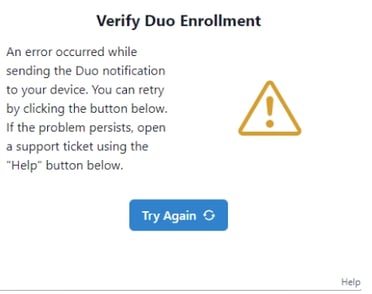
What to do:
- Click "Try Again"
- Verify your phone number is correct
- Check that you can receive SMS messages
- If persistent → click "Help" → "Atomus Support request"
- Team Atomus will text your phone number the Duo Enrollment link to connect your device to Duo
Alert 6: Email "MFA Setup Required"
What you see: Email from Atomus about MFA setup
When it appears:
- After all 6 desktop notifications have been shown, and you still haven't completed setup.
What to do:
- Open the Aegis app and complete MFA setup immediately.
- This is the final reminder.
Not Receiving a Duo Push Notification to your Phone?
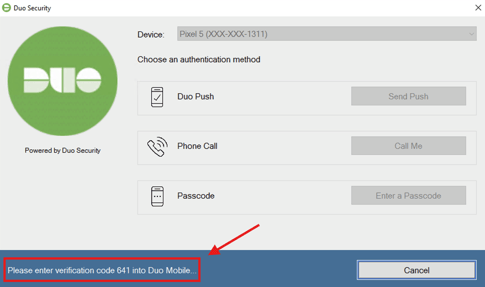
Users may instead be prompted to enter the Duo code in the push notification on their Duo mobile app (See Below).
Please do not hesitate to reach out to Team Atomus (success@atomuscyber.com) for any Duo errors your team encounters over the next few weeks.