![atomuslogoupdate.png]](https://portal.atomuscyber.us/hs-fs/hubfs/atomuslogoupdate.png?height=40&name=atomuslogoupdate.png)
How to Update Atomus Aegis & Set Up Offline MFA
Applies to: macOS | Estimated time: 5–10 minutes
Duo has made changes that require all users running an older version of the Atomus Aegis app to update and re-enroll in offline MFA. Without completing both steps, you may experience login disruptions.
STEP 1 — Update the Atomus Aegis App
Open the Atomus Aegis app from your Mac menu bar. At the bottom left of the app window, you will see the current version number with a circular arrows (↻) icon next to it. Click it to check for and install the latest update.
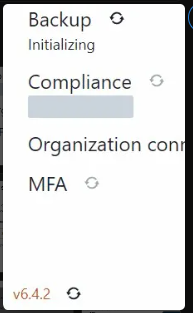
The version number and update icon appear at the bottom left of the Aegis app.
STEP 2 — Start Offline MFA Setup
After updating, the app will show "Offline setup required" next to MFA. Click on MFA to begin the setup process.
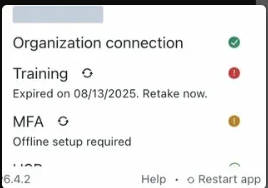
The app will display "Offline setup required" under the MFA section.
A screen titled "Setup Offline Access" will appear. After you have read the instructions. Check the box that says, "I have read and understand the offline setup instructions", then click Sign out.
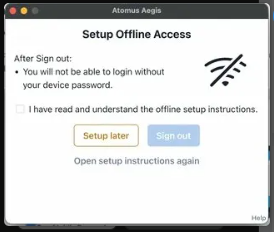
Check the acknowledgment box, then click Sign out to proceed.
STEP 3 — Confirm Sign Out
A confirmation prompt will appear warning that you are about to be signed out. Make sure all your work is saved, then click Confirm.
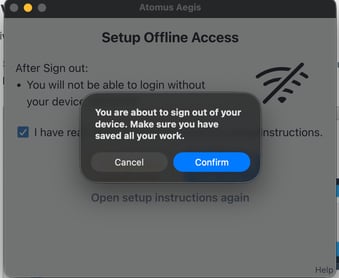
Click Confirm to sign out and proceed with the offline setup.
STEP 4 — Log Back In & Approve the Duo Push
Your Mac will display the Atomus login screen. Click Send Push — a Duo push notification will be sent to your phone. Approve it on your phone to continue.
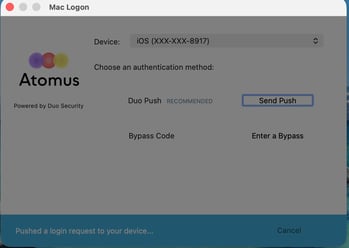
Click Send Push, then approve the notification on your phone.
STEP 5 — Set Up Offline Access via QR Code
After approving the push, a Duo window will appear titled "Login to Mac even when you're offline." Click Continue.
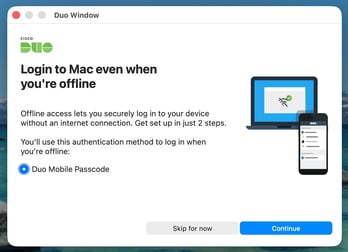
Click Continue to proceed to the QR code screen.
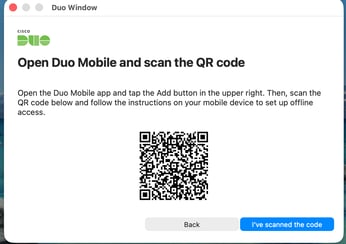
The next screen will display a QR code. To scan it:
- Open the Duo Mobile app on your phone
- Tap the + (Add) button in the top right corner
- Scan the QR code displayed on your Mac screen
- Tap "I've scanned the code" once complete
Scan the QR code using the Duo Mobile app on your phone.
STEP 6 — Enter Your Offline Passcode
After scanning, Duo Mobile will add an offline account for your Mac and display a 6-digit passcode. Enter that passcode when prompted on your Mac to complete the login.
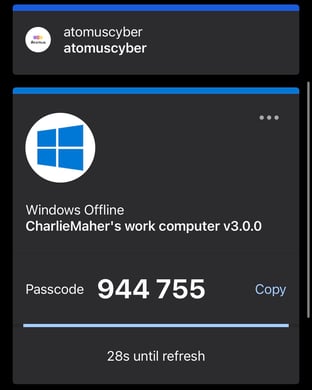
ℹ️ Your offline passcode rotates every 30 seconds in Duo Mobile. If it expires before you enter it, simply use the next code shown.
Once you're logged in, you're done. The Atomus Aegis app will show MFA as configured and you will not need to repeat this process unless instructed.
Need help?
If you get stuck at any step or are unable to log back in, contact Atomus support immediately — do not wait.